All guides
Syncing to DISKO Cloud
Put a project in the cloud for sharing and collaboration — while your originals stay exactly where they are.
Off by default, on when you say so
DISKO uploads nothing until you explicitly turn cloud sync on — the desktop app is fully functional without ever touching the internet. Cloud sync needs a DISKO Cloud Pro subscription and a signed-in account; once enabled, you choose per project what goes up.
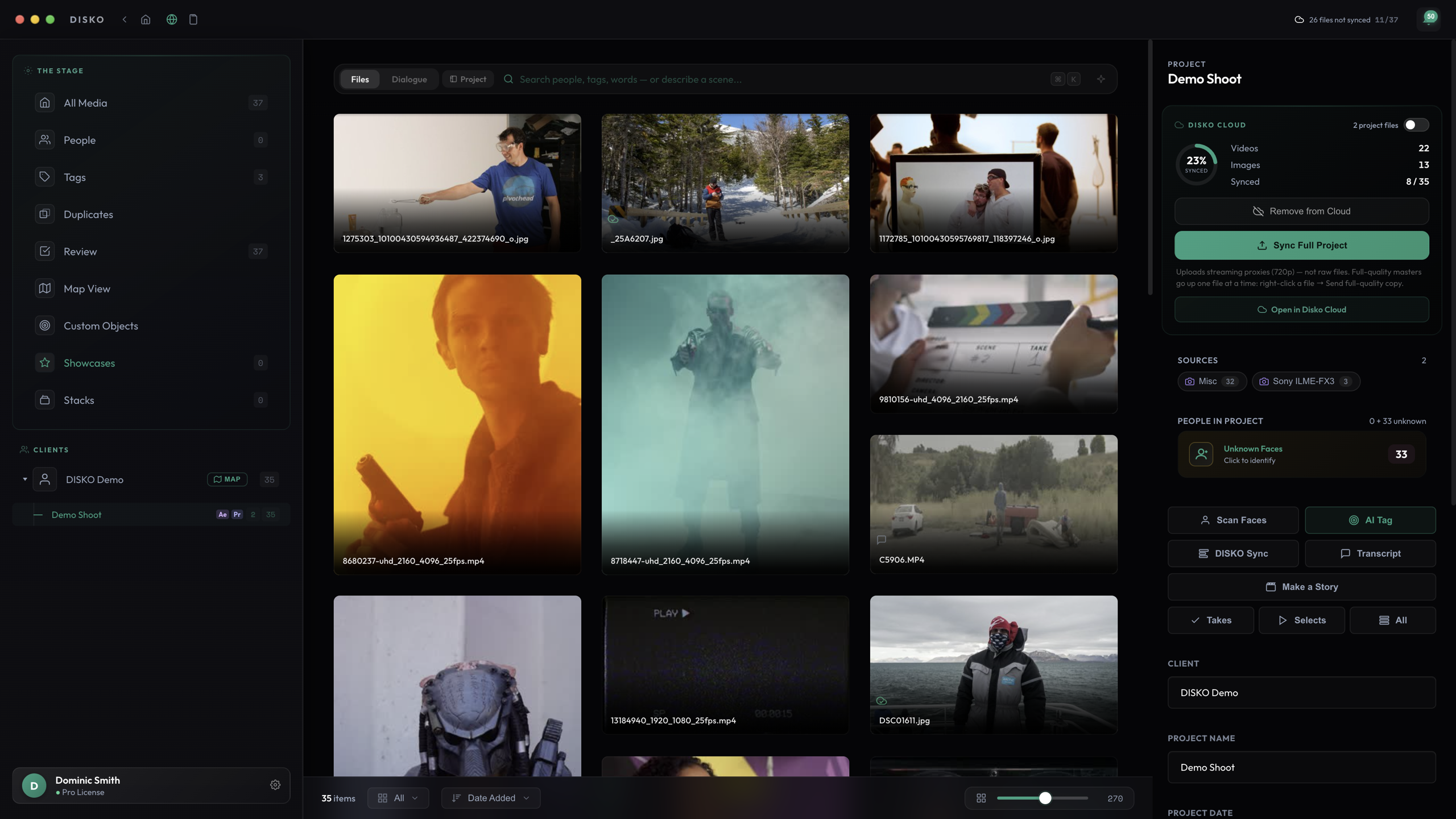
What actually uploads
A synced project sends metadata (tags, people, transcripts, locations, notes) plus thumbnails and streaming proxies — not your original camera files. Your originals never leave your drives unless you deliberately use "Send full-quality copy to Cloud" on a specific file. That keeps sync fast and your storage bill sane.
- 1Right-click a project (or open its inspector) and choose to sync it.
- 2Metadata syncs first — the project appears in your cloud library almost immediately.
- 3Thumbnails and proxies upload in the background; each file becomes streamable as its proxy lands.
Watching it happen
Sync is resumable: quit mid-upload, reopen next week, and it picks up where it stopped. Edits you make on desktop after syncing — new tags, renames, favorites — push to the cloud automatically. Desktop is always the source of truth.
What you get up there
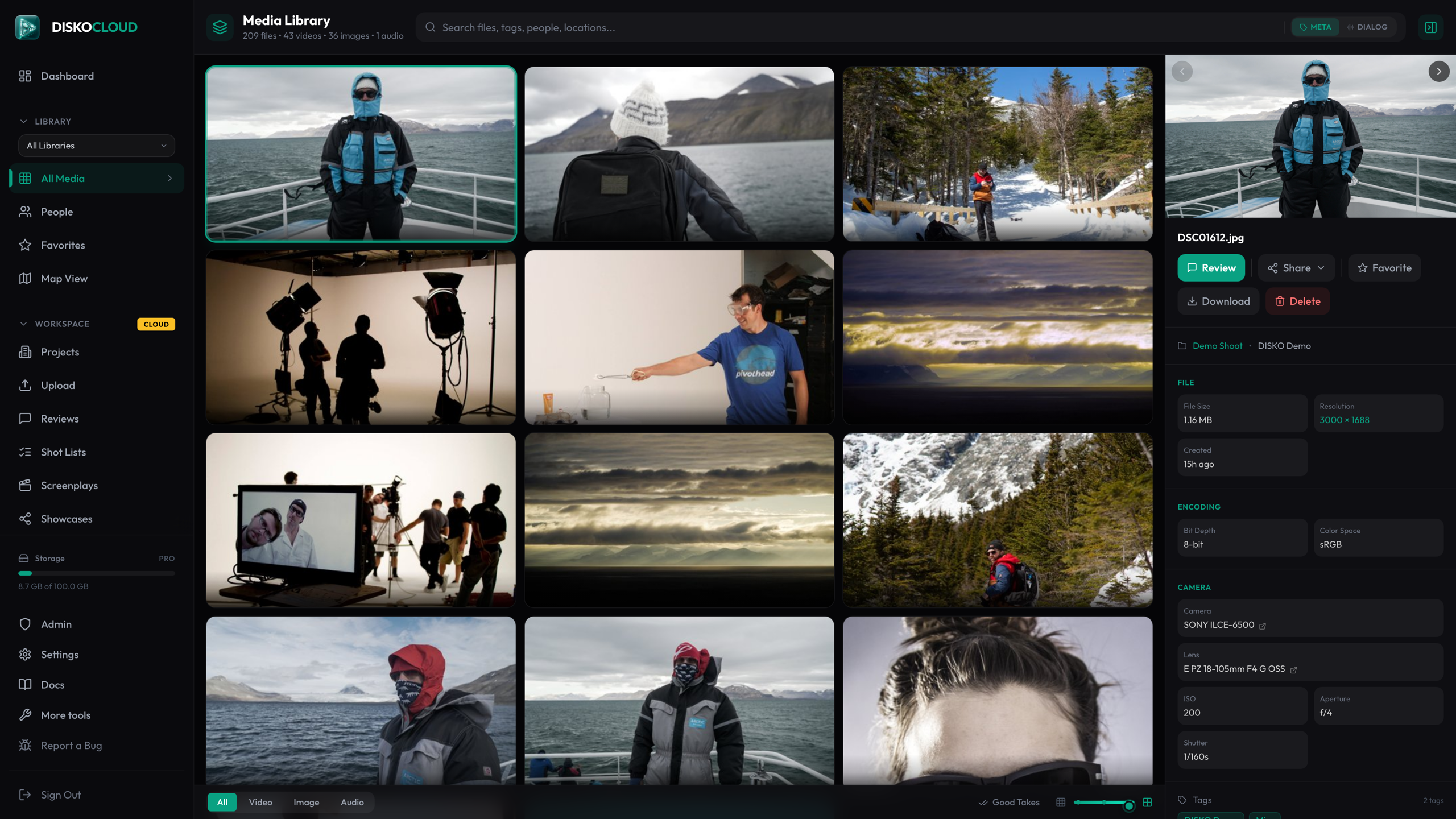
The cloud library mirrors your desktop organization: clients, projects, tags, people, the map, even dialogue search across transcripts. It is also the launchpad for everything shareable — review links, client portals, and showcases all draw from your synced projects.